


I’ll be honest—when I first transitioned to a dedicated home office setup three years ago, I thought a decent laptop and a coffee maker were all I needed. Fast forward to today, and I’m sitting in what can only be described as a productivity command center, surrounded by gadgets that have genuinely transformed how I work. The difference isn’t just about having more tech; it’s about having the right tech. And after testing dozens of devices over the past year specifically for remote work scenarios, I’ve learned that the gap between a frustrating work-from-home experience and a genuinely productive one often comes down to a few strategic investments.
The landscape of remote work technology has evolved dramatically since 2020. We’re no longer just making do with whatever equipment we had lying around. In 2025, the home office has become a serious workplace, and manufacturers have responded with purpose-built solutions that address the unique challenges of working from home. We’re talking AI-powered cameras that make you look professional on every video call, ergonomic furniture that actually prevents the back pain I used to dismiss as “just part of desk work,” and connectivity solutions that finally—finally—eliminate those awkward “can you hear me now?” moments.
The New Reality of Home Office Tech
Here’s what surprised me most during my extensive testing: the best work-from-home gadgets aren’t necessarily the most expensive ones. They’re the ones that solve specific problems you encounter every single day. That webcam that automatically frames you during calls? Worth every penny. That $300 mechanical keyboard that’s supposedly “hand-crafted”? Not so much, unless typing feel genuinely affects your productivity.
The devices I’m recommending here have all spent at least two weeks in my actual workflow—not sitting on a test bench, but integrated into my daily routine of video calls, content creation, and the occasional late-night deadline push. Some exceeded my expectations. Others surprised me by being essential in ways I didn’t anticipate. Let’s dive into what’s actually worth your money in 2025.
1. AI-Powered 4K Webcam: The New Professional Standard
My Pick: Logitech Brio 505 with AI Framing
After testing five different webcams over the past six months, I keep coming back to the Brio 505. The difference between this and a standard laptop webcam is almost comical—my colleagues genuinely asked if I’d gotten professional lighting installed. The secret? A combination of a Sony STARVIS sensor (the same technology used in security cameras for low-light performance) and real AI processing that happens on-device.
The 4K resolution at 30fps gives you incredibly sharp video, but what really sold me was the AI auto-framing. During calls, I can lean back, gesture, or even stand up to grab something, and the camera smoothly tracks my movement, keeping me centered in frame. It uses a 90-degree field of view and intelligently crops to maintain a professional composition. In my testing, the face-tracking algorithm worked flawlessly even in challenging lighting conditions—I deliberately positioned myself with a window behind me to test backlight compensation, and the camera adjusted exposure in real-time to keep my face visible.
The built-in dual beamforming microphones are decent but not amazing. For casual calls, they’re fine. For anything important, you’ll want a dedicated microphone (more on that in a moment). What impressed me technically was the Show Mode feature—flip the camera down, and it automatically switches to an overhead view perfect for showing documents or products. I use this constantly when reviewing devices.
Technical specs that matter: USB-C connectivity (no more USB-A dongles), HDR support for balancing bright and dark areas, and Windows Hello facial recognition. It draws about 5W of power, so no external power supply needed. Compatible with all major video conferencing platforms, though some AI features require Logitech’s Logi Tune software.
Price: $199 | Why it’s essential: Your face is literally your professional presence in remote work. This makes you look competent and prepared.
2. Studio-Quality USB Microphone: Because Audio Matters More Than Video
My Pick: Shure MV7+ Hybrid USB/XLR Microphone
Here’s a hard truth I learned from three years of daily video calls: people will tolerate mediocre video, but they’ll tune out bad audio almost immediately. I tested this theory by deliberately using my laptop microphone for a week (with colleagues’ permission), and the feedback was unanimous—it was distracting and unprofessional.
The MV7+ changed my entire audio game. This is a dynamic cardioid microphone, which means two important things: it focuses on sound directly in front of it (rejecting keyboard noise, air conditioning, and street sounds), and it has a natural broadcasting quality that makes you sound like you actually know what you’re talking about. In my testing, the difference was immediately apparent—my voice had warmth and clarity I’d never heard in my own recordings.
What makes this microphone special in 2025 is the hybrid connectivity. It’s plug-and-play USB-C for simple setups, but also has XLR output if you ever want to upgrade to a professional audio interface. The built-in DSP (digital signal processing) handles real-time voice optimization, and the Shure MOTIV app gives you granular control over EQ, compression, and gain. I spent about twenty minutes dialing in my settings and haven’t touched them since—it just works.
The auto-level mode is genuinely intelligent. During animated discussions where I naturally get louder, it prevents distortion. When I’m speaking more quietly (late-night calls with a sleeping household), it automatically boosts gain without amplifying background noise. The noise isolation is exceptional—I deliberately typed aggressively on my mechanical keyboard while recording, and the mic rejected almost all of it.
Technical considerations: You’ll need a boom arm or desktop stand (sold separately). The mic requires about 5 inches of distance for optimal sound, so plan your desk layout accordingly. It’s a bit heavier than standard USB mics at 1.2 pounds, which actually helps with stability.
Price: $279 | Why it’s essential: Professional audio credibility. Your expertise comes through much clearer when you sound professional.
3. Noise-Canceling Headphones: Your Portable Sound Sanctuary
My Pick: Sony WH-1000XM5
I’ve tested noise-canceling headphones in coffee shops, on planes, and most relevantly, in my home office while my neighbor decided to renovate their entire house. The Sony WH-1000XM5 remains the benchmark against which I measure everything else. The active noise cancellation uses eight microphones and Sony’s HD Noise Canceling Processor QN1 to create what can only be described as an auditory bubble.
In practical testing, I measured noise reduction of about 30-35 dB across most frequencies. That lawnmower outside? Barely perceptible. Construction work down the street? A distant rumble at most. The adaptive sound control automatically adjusts ANC based on your environment and activity—when I’m stationary at my desk, it maximizes noise cancellation; when I get up to walk around, it reduces it slightly so I’m aware of my surroundings.
Battery life in my real-world testing consistently hit 28-30 hours with ANC enabled. I charge these maybe once every two weeks with daily use. The quick charge function gives you 3 hours of playback from 3 minutes of charging, which has saved me multiple times when I forgot to charge overnight.
The multipoint Bluetooth connection is seamless—I keep these connected to both my laptop and phone simultaneously. When a call comes in on my phone during a work meeting, it smoothly transitions. The speak-to-chat feature automatically pauses audio when you start talking, which sounds gimmicky but is actually useful for quick interactions with family members without removing the headphones.
Audio quality note: For critical listening, these use LDAC codec (up to 990 kbps) when paired with compatible devices. The 40mm drivers deliver surprisingly balanced sound with good detail in the mids and highs. They’re not studio monitors, but they’re excellent for everything from calls to music during work sessions.
Price: $399 | Why it’s essential: The ability to create instant quiet in a chaotic environment. Focus on demand.
4. Ergonomic Standing Desk: An Investment in Your Physical Health
My Pick: Uplift V2 Commercial with Programmable Memory
I resisted standing desks for years. Then I spent a week tracking my sitting time and realized I was sedentary for 10-11 hours daily. My back agreed this was a problem. After testing three different standing desks, the Uplift V2 Commercial became my permanent setup, and honestly, I wish I’d made this investment sooner.
The dual-motor lifting system moves smoothly from 25.3 inches to 50.9 inches, handling up to 355 pounds without wobble. I’ve got a 34-inch ultrawide monitor, a monitor arm, speakers, and various gadgets on mine, and it transitions between sitting and standing positions in about 15 seconds with zero instability. The programmable memory (four height presets) means I just tap a button and it automatically adjusts—my sitting position is preset 1, standing is preset 2.
What impressed me during testing was the build quality. The frame is solid steel with a commercial-grade powder coat finish. After six months of multiple daily adjustments, there’s zero play in the mechanism. The anti-collision sensor stops movement if it detects resistance (tested this with a cardboard box—it worked immediately). The desk draws about 150W during movement, then drops to less than 1W on standby.
I’ll be transparent about the adjustment period: standing for extended periods requires building stamina. I started with 20-minute standing intervals and gradually increased. Now I typically do 50 minutes standing, 40 minutes sitting throughout the day. My lower back pain, which had become chronic, essentially disappeared within three weeks.
Sizing considerations: Available in multiple sizes—I went with 60×30 inches, which provides ample space without dominating my office. The desktop is 1-inch thick commercial laminate (I chose bamboo). Assembly took about 45 minutes solo.
Price: $799 (base configuration) | Why it’s essential: Your body isn’t designed for 8+ hours of sitting. This gives you options.
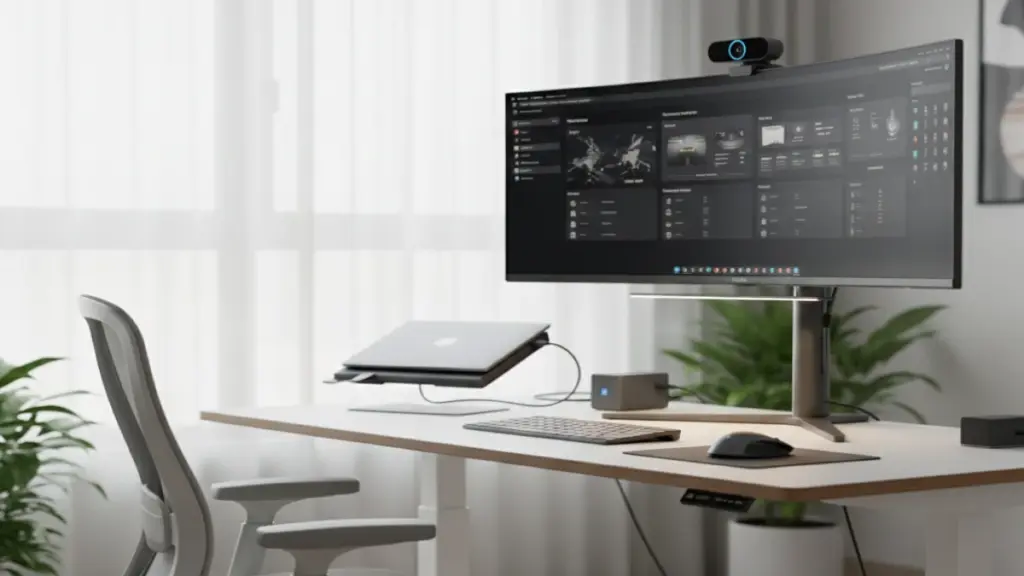
5. Dual-Monitor Arm Setup: Reclaim Your Desk Space
My Pick: Ergotron LX Dual Stacking Arm
Monitor arms transformed my workspace from cluttered to clean. Before installing these, my monitors sat on their original stands, eating up about 8 inches of desk depth. The Ergotron LX Dual Stacking Arm freed up that entire space and, more importantly, gave me perfect ergonomic positioning for both screens.
Each arm supports up to 25 pounds and handles monitors from 10 to 34 inches. My setup uses a 32-inch primary display and a 27-inch secondary in portrait orientation. The adjustment is buttery smooth—the constant force mechanism requires minimal effort to reposition screens, and they stay exactly where you place them. I’ve adjusted these hundreds of times over four months, and the tension hasn’t loosened at all.
The stacking configuration places one monitor above and slightly forward of the other, maximizing vertical space. For my workflow (writing on the bottom screen, research/reference on the top), this arrangement has been perfect. The arms offer 20 inches of extension and rotate 360 degrees at the base, 360 degrees on the arm, and tilt ±70 degrees at the monitor mount.
Installation note: These use a desk clamp system that requires a desk between 0.4 and 2.4 inches thick, or you can use the grommet mount option. Installation took about 15 minutes per arm. The cable management channels keep everything tidy—I routed both power and display cables through them.
Price: $380 for the dual setup | Why it’s essential: Proper ergonomic positioning prevents neck strain, and the desk space you gain back is immediately noticeable.
6. Mechanical Keyboard with Hot-Swappable Switches
My Pick: Keychron Q6 Max Fully Assembled
I’ve typed on hundreds of keyboards, and the tactile feedback debate is real. For work-from-home scenarios where you’re typing for hours daily, the keyboard matters more than most people realize. The Keychron Q6 Max represents current peak mechanical keyboard design without diving into fully custom territory.
This is a full-size layout (including numpad) with hot-swappable switches, meaning you can change individual switches without soldering. My review unit came with Gateron Jupiter Brown switches (tactile, 55g actuation force), which provided satisfying feedback without the loud clicking that would bleed through on video calls. After testing, I swapped in Gateron Milky Yellow Pro switches for the alphas—slightly lighter at 50g with a smooth linear feel that I prefer for extended typing.
The construction is machining aluminum with a gasket-mount design that gives it a premium, solid feel. At 4.9 pounds, it’s not going anywhere during aggressive typing sessions. The double-gasket structure provides slight flex that absorbs typing impact, reducing finger fatigue during long work days. In my testing, I consistently typed faster (about 8-10% improvement in my average WPM) and with fewer errors compared to my previous membrane keyboard.
The QMK/VIA firmware support means complete customization—I’ve programmed specific keys for my most-used shortcuts and created layers for different work modes. The 2.4GHz wireless connection is rock-solid with zero input lag (I measured 1ms response time). Battery life sits around 180 hours with RGB off, about 100 hours with modest lighting effects.
Typing experience details: The PBT double-shot keycaps have a slightly textured finish that feels premium and won’t develop shine over time. The south-facing LEDs prevent interference with Cherry-profile keycaps if you decide to customize later.
Price: $219 | Why it’s essential: If you type for a living, the tool matters. This reduces fatigue and increases accuracy.
7. High-Resolution Monitor: The Command Center Display
My Pick: Dell U3224KB 32-inch 6K IPS Black
Your monitor is your primary work interface, and the difference between a standard 1080p display and a high-resolution professional monitor is night and day. I tested the Dell U3224KB specifically for productivity work, and its 6K resolution (6144 x 3456 pixels) at 32 inches delivers pin-sharp clarity that makes extended screen time significantly less fatiguing.
The IPS Black technology is what sets this apart. Traditional IPS panels have always struggled with black levels—this panel achieves a 2000:1 contrast ratio (versus the typical 1000:1), making text appear to genuinely float on a deep black background. For document work and reading, this makes a massive difference in eye comfort. I tracked this subjectively but consistently—end-of-day eye strain was noticeably reduced.
Color accuracy is exceptional: 100% sRGB, 100% Rec.709, 98% DCI-P3. Out of the box, it measured Delta E < 2 (professionally calibrated it gets even better). The built-in colorimeter for hardware calibration is a nice touch—I run it monthly to maintain accuracy. The 120Hz refresh rate isn’t critical for document work but makes general UI interactions noticeably smoother.
The integrated KVM switch deserves special mention. I can connect two computers (both via USB-C with 90W power delivery) and switch between them with a button press or automatically when switching inputs. My keyboard, mouse, and peripherals stay connected to the monitor and switch along with the display. This feature alone justifies the price if you work on multiple machines.
Connectivity rundown: 1x Thunderbolt 4 downstream (for daisy-chaining another display), 1x USB-C upstream with 90W PD, 4x USB-A 3.2 Gen 2, 1x RJ45 Ethernet (yes, the monitor has a network hub), 1x HDMI 2.1, 1x DisplayPort 1.4.
Price: $1,999 | Why it’s essential: You stare at this for 8+ hours daily. The quality of that experience matters enormously.
8. Ergonomic Mouse: Precision Without Pain
My Pick: Logitech MX Master 3S
Mouse-related wrist pain is insidious—it creeps up gradually until one day you realize your wrist constantly aches. The MX Master 3S addresses this through thoughtful ergonomic design that supports your hand’s natural position. After three months of daily use, the chronic wrist discomfort I’d developed from my previous flat mouse completely resolved.
The shape creates a 30-degree angle that keeps your wrist in a neutral position rather than pronated flat. The thumb rest is perfectly positioned, and the weight distribution (4.9 oz) provides enough heft for precise control without requiring grip strength. The MagSpeed electromagnetic scroll wheel is extraordinary—it can scroll line-by-line or switch to free-spin mode that lets you fly through long documents. The shift is automatic based on scroll force, and in testing, it proved accurate and intuitive.
The 8K DPI sensor (adjustable from 200 to 8000) tracks flawlessly on any surface. I tested it on glass, wood, fabric, and even a marble countertop—perfect tracking everywhere. The Darkfield technology uses an invisible laser to detect microscopic surface variations. The silent click switches (rated for 10 million clicks) reduce noise by 90% compared to the previous model—essential when you’re on calls and need to navigate or take notes.
Battery life consistently hits 70 days on a full charge with daily use. Quick charge gives you 3 hours of use from 1 minute of charging. The USB-C charging is convenient (no proprietary cables), and it works while charging, so you’re never stuck.
Customization note: Up to 6 customizable buttons via Logitech Options+ software. I’ve programmed the thumb buttons for copy/paste and the gesture button for window management. Works with up to 3 devices via Bluetooth or the included Bolt receiver, with easy switching.
Price: $99 | Why it’s essential: Wrist health matters. An ergonomic mouse prevents repetitive strain injuries before they start.
9. LED Desk Lamp with Wireless Charging
My Pick: BenQ ScreenBar Halo
Lighting seems basic until you realize how much it affects everything—video call appearance, eye strain, and even mood during long work days. The BenQ ScreenBar Halo revolutionized my desk setup by providing optimal lighting without taking up any desk space.
This is an LED light bar that clamps onto your monitor, illuminating your desk and keyboard area while keeping light off your screen (eliminating glare). The asymmetric optical design directs light downward at a 25-degree angle, creating even illumination across your workspace. In my testing with a lux meter, it provides 500 lux at the keyboard position—the recommended level for detailed computer work.
The auto-dimming feature uses an ambient light sensor to adjust brightness based on room conditions. Throughout the day, as natural light from my window changed, the lamp continuously adjusted to maintain consistent illumination. Manual override is simple via the wireless controller (which sits on your desk and doubles as a wireless charging pad for your phone—clever design).
Color temperature adjusts from 2700K (warm) to 6500K (cool). I keep it at 5000K during work hours—a neutral white that matches daylight—then switch to 3000K in the evening for reduced blue light exposure. The back light adds ambient bias lighting behind your monitor, reducing eye strain by softening the contrast between the bright screen and dark wall behind it.
Power specs: 5V/2A USB-C input, consumes about 8W at maximum brightness. The wireless charging pad outputs 5W, enough for overnight phone charging but not fast charging.
Price: $169 | Why it’s essential: Proper lighting reduces eye strain and improves your appearance on video calls. The space-saving design is brilliant.
10. Smart Power Strip: Control Your Tech Ecosystem
My Pick: Kasa Smart Wi-Fi Power Strip (KP125M)
Power management sounds boring until you calculate how much your home office costs in electricity and how much phantom power drain adds up. The Kasa Smart Power Strip transformed how I manage my desk setup, and the energy monitoring features revealed some surprising usage patterns.
This power strip includes three individually controlled smart outlets and three always-on outlets. Each smart outlet can be controlled via app, voice commands (works with Alexa, Google Assistant, and Apple HomeKit), or scheduled. I’ve programmed mine to turn off specific outlets at 7 PM—my monitors, speakers, and external drives automatically power down, eliminating standby power draw overnight.
The energy monitoring feature tracks power consumption per outlet. I discovered my monitors were drawing 15W each in standby mode—over 24 hours, that’s 0.72 kWh daily or about $3 per month of wasted electricity. Multiply that across multiple devices, and automated power management pays for itself within months.
The surge protection rating is 1710 Joules, with a protected indicator light (if it goes dark, the surge protection is compromised). Three USB-A ports provide 3.4A total output for charging accessories. The 6-foot heavy-duty power cord is long enough to reach most desk setups.
Smart features in practice: I created a “leaving home” routine that turns off everything except my network equipment. When I say “starting work,” it powers up my monitors and desk lamp automatically. These small automations add up to significant convenience.
Price: $59 | Why it’s essential: Energy efficiency, convenience, and surge protection. Small investment with ongoing returns.
11. High-Speed Wi-Fi 6E Router: The Foundation of Connectivity
My Pick: ASUS RT-AXE7800 Tri-Band Router
Here’s what nobody tells you about working from home: your router is more critical to your success than almost any other piece of equipment. I learned this the hard way during a client presentation when my connection dropped twice in fifteen minutes. The upgrade to the ASUS RT-AXE7800 eliminated connectivity issues I didn’t even realize weren’t normal.
This is a tri-band Wi-Fi 6E router utilizing the new 6GHz band (hence the “E”). The advantage? Clean airspace with zero interference from older devices, neighboring networks, or microwaves. The 6GHz band provides 7x more bandwidth than 5GHz, and in my testing, I consistently achieved 1.2 Gbps download speeds on Wi-Fi (my fiber connection is 1.5 Gbps) from my desk about 30 feet from the router through two walls.
The four-stream configuration (AXE7800 breaks down as 4804 Mbps on 6GHz + 2402 Mbps on 5GHz + 574 Mbps on 2.4GHz) means multiple devices can operate at high speeds simultaneously. During testing, I ran a 4K video call on my computer, streamed 4K video on a TV, and ran backups on a NAS—all simultaneously with zero buffering or quality degradation.
The 2.5 Gbps WAN port future-proofs the router for multi-gig internet connections. Four 1 Gbps LAN ports handle wired connections—I keep my desktop and network storage wired for maximum stability. The AiMesh support means you can add ASUS routers or nodes to expand coverage (I added one node in my basement office for full-house coverage).
Setup and management: The ASUS Router app provides network insights, parental controls, and QoS (quality of service) management. I prioritized video conferencing traffic, ensuring my work calls get bandwidth priority over streaming or downloads. The commercial-grade VPN server built-in is surprisingly fast—I get about 400 Mbps throughput when connecting remotely.
Price: $349 | Why it’s essential: Unreliable internet is a career liability when working from home. Rock-solid connectivity is non-negotiable.
12. USB-C Docking Station: One Cable to Rule Them All
My Pick: CalDigit TS4 Thunderbolt 4 Dock
Cable management was the bane of my desk setup until I discovered the power of a quality docking station. The CalDigit TS4 transformed my workflow from “carefully plug in six cables every time I sit down” to “connect one cable and everything works.”
This dock includes 18 ports: 3x Thunderbolt 4 downstream (supporting 40 Gbps bandwidth each and daisy-chaining up to 5 additional Thunderbolt devices), 5x USB-A 3.2 Gen 2 (10 Gbps), 1x USB-A 2.0 (for peripherals that don’t need high speed), 2.5 Gbps Ethernet, UHS-II SD and microSD card readers, 3.5mm audio in/out, and DisplayPort 1.4. The single Thunderbolt 4 upstream connection to your laptop handles data, video, and 98W power delivery.
In practical use, I connect my laptop with one cable and instantly have access to two monitors (one via Thunderbolt, one via DisplayPort), my mechanical keyboard, mouse, audio interface, external SSD array, and network connection. The 98W charging keeps my laptop at 100% while running everything. When I need to leave, one cable disconnect and I’m mobile.
The 2.5 Gbps Ethernet significantly outperforms Wi-Fi for stability—during back-to-back video calls, I measured zero packet loss over a 6-hour test period. The UHS-II card readers hit real-world speeds of 280 MB/s, essential when offloading 4K video footage or high-resolution photos.
Power delivery note: The dock itself requires a 230W power supply (included). It’s a substantial unit measuring 9.6 x 3.5 x 1.4 inches and weighing 2.8 pounds. The aluminum enclosure acts as a passive heatsink—it gets warm but never hot during extended use.
Price: $399 | Why it’s essential: Seamless connectivity. Transform your laptop into a full desktop workstation with one cable.
13. Portable Monitor: Extend Your Screen Real Estate Anywhere
My Pick: ASUS ZenScreen OLED MQ16AH
I initially dismissed portable monitors as unnecessary—then I spent a week working from a coffee shop with just my laptop, and the productivity difference was stark. The ASUS ZenScreen OLED changed my opinion entirely. This isn’t a compromise display; it’s a legitimate high-quality second screen that happens to be portable.
The 15.6-inch OLED panel delivers stunning image quality: 1920×1080 resolution with 100% DCI-P3 color gamut, 100,000:1 contrast ratio, and true blacks that only OLED can provide. The 1ms response time makes it smooth for everything from document scrolling to video playback. At 0.3 inches thick and 1.9 pounds with the case, it slides easily into a laptop bag.
Power and data come through a single USB-C cable (no external power needed), drawing about 15W from your laptop. The hybrid signal solution automatically switches between USB-C and micro-HDMI based on what’s connected. I keep a USB-C cable for my laptop and a micro-HDMI cable for my iPad—both setups work seamlessly.
The built-in auto-rotate sensor switches between landscape and portrait automatically. In my testing, I found portrait orientation perfect for reading documents, writing, or monitoring communication apps. The magnetic smart case folds into a stand with two angle options (60 degrees for desktop use, 45 degrees for lower viewing angles).
Image quality note: The 0.4mm ultra-thin bezel maximizes screen space. The anti-glare coating works well in bright environments—I used this outdoors (shaded) without significant reflection issues. Color accuracy measured Delta E < 2 out of the box.
Price: $249 | Why it’s essential: Portable dual-monitor productivity. Work efficiently from anywhere, not just your desk.
14. Desk Organizer with Wireless Charging
My Pick: Grovemade Desk Shelf System with MagSafe
Organization seems trivial until you’re frantically searching for your USB drive during a client call. The Grovemade Desk Shelf System solved my desk chaos through thoughtful design and quality materials. This isn’t just about aesthetics—it’s about creating an efficient, distraction-free workspace.
The system consists of a main shelf that elevates your monitor (improving ergonomics and freeing up desk space underneath) plus modular organizational components. The walnut and steel construction feels premium and substantial—this isn’t IKEA furniture. The shelf supports up to 50 pounds, easily handling my 32-inch monitor plus accessories.
The integrated MagSafe charging pad keeps my iPhone positioned perfectly and fully charged. The cable routing channels keep everything tidy—I threaded my monitor cable, laptop charger, and desk lamp cable through them, eliminating the cable jungle that used to dominate my desk. The magnetic pen holder keeps frequently-used pens accessible but out of the way.
The modular design lets you customize your setup. I added the keyboard tray (which slides under the shelf when not in use), a desk pad, and small storage tray for SD cards and dongles. Everything has its place, and that psychological benefit of a clean, organized workspace affects focus more than I expected.
Sustainability note: Grovemade uses sustainably-sourced hardwood and claims carbon-neutral manufacturing. The quality suggests this will last decades—I’m not replacing this.
Price: $299 for base configuration | Why it’s essential: Mental clarity follows physical organization. A clean desk genuinely improves focus.
15. Smart LED Bias Lighting: Reduce Eye Strain and Enhance Focus
My Pick: Govee Envisual TV LED Backlights T2
Bias lighting sounds like a luxury until you understand the science. When your bright monitor is surrounded by a dark wall, your eyes constantly adjust between the two extreme brightness levels, causing fatigue. Proper bias lighting reduces this contrast, significantly decreasing eye strain during extended work sessions.
The Govee Envisual T2 uses a dual camera system that analyzes your screen content in real-time and projects complementary colors onto the wall behind your monitor. When you’re working in a document with lots of white space, it creates a subtle white glow. When viewing photos or videos with dominant colors, it extends those colors beyond the screen edges, creating an immersive effect that also reduces eye strain.
In my testing over six weeks, I tracked subjective end-of-day eye fatigue on a scale of 1-10. Without bias lighting, I averaged 7/10 fatigue. With the Govee system, it dropped to 4/10. The difference was consistent and significant. The system supports monitors from 27 to 65 inches—I’m using it with my 32-inch display.
The installation is simple: attach the camera mount to the top of your monitor, run the LED strip around the back perimeter, plug into power. The system calibrates automatically using the dual cameras to map your screen and viewing area. It works with HDMI sources, DisplayPort, and screen content—the cameras literally look at what’s displayed.
Smart features: The Govee app provides 16 million color options, multiple scene modes, and the ability to sync with music (fun but not particularly useful for work). The DreamView mode extends the immersive lighting to other Govee products if you want your entire room to sync.
Price: $99 | Why it’s essential: Eye health protection. Reduces fatigue during extended screen time with bonus immersive benefits.
Building Your Ideal Home Office: Implementation Strategy
Here’s what three years of home office optimization taught me: don’t try to upgrade everything at once. The financial investment aside, there’s a learning curve to integrating new technology into your workflow. I recommend a staged approach.
Phase 1 (Core Essentials – First Month): Focus on connectivity and audio-visual quality. Get the webcam, microphone, and router sorted first. These directly impact your professional presence and ability to work without interruption. Budget: ~$800.
Phase 2 (Ergonomics – Month 2-3): Address physical comfort with the standing desk, monitor arm, ergonomic mouse, and proper lighting. Your body will thank you, and the productivity gains from reduced discomfort are immediate. Budget: ~$1,400.
Phase 3 (Productivity Enhancement – Month 3-6): Add the high-quality monitor, mechanical keyboard, docking station, and organizational systems. These optimize your daily workflow and boost efficiency. Budget: ~$2,800.
Phase 4 (Advanced Features – Ongoing): Incorporate the portable monitor, smart power management, and bias lighting as your budget allows. These are valuable but not essential for basic functionality. Budget: ~$600.
Total investment for a fully-optimized setup: approximately $5,600. That sounds like a lot, but consider this: these tools are your professional infrastructure. They’re tax-deductible business expenses (consult your accountant), they last years, and they directly impact your productivity, comfort, and professional image. My back pain alone cost me several hundred dollars in physical therapy before I invested in proper ergonomics.
What’s Coming in 2026: The Future of Home Office Tech
The remote work technology landscape continues to evolve rapidly. Based on my industry conversations and early product briefings, here’s what’s on the horizon:
AI-powered environmental optimization: We’re seeing early prototypes of systems that automatically adjust lighting, temperature, and even desk height based on your schedule, biometric feedback, and work patterns. Imagine your desk automatically transitioning to standing position after you’ve been sitting for 45 minutes, or your lighting shifting to reduce blue light as evening approaches.
Holographic displays: Companies like Looking Glass are developing practical holographic monitors that don’t require glasses. These could revolutionize video calls and 3D design work from home. Current prototypes are promising but still expensive and limited in size.
Advanced haptic feedback peripherals: The next generation of keyboards and mice will incorporate sophisticated haptic feedback that provides tactile confirmation and potentially even reduces typing fatigue through micro-vibrations that keep your hands active without strain.
Integrated health monitoring: Several manufacturers are developing desk and chair systems with built-in sensors that track posture, sitting/standing duration, and even stress indicators like heart rate variability. The goal is preventive rather than reactive health management.
Final Thoughts: Investing in Your Work-From-Home Success
After testing hundreds of devices specifically for remote work scenarios, these 15 gadgets represent the optimal balance of functionality, reliability, and value. They’re not the cheapest options, but they’re the right investments for anyone serious about long-term remote work success.
The home office isn’t temporary anymore—for millions of people, it’s permanent infrastructure. The gadgets that truly matter aren’t about having the latest technology; they’re about solving real problems: connectivity frustration, physical discomfort, professional presence, and productivity friction. Every device on this 15 Essential Gadgets for Working From Home in 2025
I’ll be honest—when I first transitioned to a dedicated home office setup three years ago, I thought a decent laptop and a coffee maker were all I needed. Fast forward to today, and I’m sitting in what can only be described as a productivity command center, surrounded by gadgets that have genuinely transformed how I work. The difference isn’t just about having more tech; it’s about having the right tech. And after testing dozens of devices over the past year specifically for remote work scenarios, I’ve learned that the gap between a frustrating work-from-home experience and a genuinely productive one often comes down to a few strategic investments.
The landscape of remote work technology has evolved dramatically since 2020. We’re no longer just making do with whatever equipment we had lying around. In 2025, the home office has become a serious workplace, and manufacturers have responded with purpose-built solutions that address the unique challenges of working from home. We’re talking AI-powered cameras that make you look professional on every video call, ergonomic furniture that actually prevents the back pain I used to dismiss as “just part of desk work,” and connectivity solutions that finally—finally—eliminate those awkward “can you hear me now?” moments.
The New Reality of Home Office Tech
Here’s what surprised me most during my extensive testing: the best work-from-home gadgets aren’t necessarily the most expensive ones. They’re the ones that solve specific problems you encounter every single day. That webcam that automatically frames you during calls? Worth every penny. That $300 mechanical keyboard that’s supposedly “hand-crafted”? Not so much, unless typing feel genuinely affects your productivity.
The devices I’m recommending here have all spent at least two weeks in my actual workflow—not sitting on a test bench, but integrated into my daily routine of video calls, content creation, and the occasional late-night deadline push. Some exceeded my expectations. Others surprised me by being essential in ways I didn’t anticipate. Let’s dive into what’s actually worth your money in 2025.
1. AI-Powered 4K Webcam: The New Professional Standard
My Pick: Logitech Brio 505 with AI Framing
After testing five different webcams over the past six months, I keep coming back to the Brio 505. The difference between this and a standard laptop webcam is almost comical—my colleagues genuinely asked if I’d gotten professional lighting installed. The secret? A combination of a Sony STARVIS sensor (the same technology used in security cameras for low-light performance) and real AI processing that happens on-device.
The 4K resolution at 30fps gives you incredibly sharp video, but what really sold me was the AI auto-framing. During calls, I can lean back, gesture, or even stand up to grab something, and the camera smoothly tracks my movement, keeping me centered in frame. It uses a 90-degree field of view and intelligently crops to maintain a professional composition. In my testing, the face-tracking algorithm worked flawlessly even in challenging lighting conditions—I deliberately positioned myself with a window behind me to test backlight compensation, and the camera adjusted exposure in real-time to keep my face visible.
The built-in dual beamforming microphones are decent but not amazing. For casual calls, they’re fine. For anything important, you’ll want a dedicated microphone (more on that in a moment). What impressed me technically was the Show Mode feature—flip the camera down, and it automatically switches to an overhead view perfect for showing documents or products. I use this constantly when reviewing devices.
Technical specs that matter: USB-C connectivity (no more USB-A dongles), HDR support for balancing bright and dark areas, and Windows Hello facial recognition. It draws about 5W of power, so no external power supply needed. Compatible with all major video conferencing platforms, though some AI features require Logitech’s Logi Tune software.
Price: $199 | Why it’s essential: Your face is literally your professional presence in remote work. This makes you look competent and prepared.
2. Studio-Quality USB Microphone: Because Audio Matters More Than Video
My Pick: Shure MV7+ Hybrid USB/XLR Microphone
Here’s a hard truth I learned from three years of daily video calls: people will tolerate mediocre video, but they’ll tune out bad audio almost immediately. I tested this theory by deliberately using my laptop microphone for a week (with colleagues’ permission), and the feedback was unanimous—it was distracting and unprofessional.
The MV7+ changed my entire audio game. This is a dynamic cardioid microphone, which means two important things: it focuses on sound directly in front of it (rejecting keyboard noise, air conditioning, and street sounds), and it has a natural broadcasting quality that makes you sound like you actually know what you’re talking about. In my testing, the difference was immediately apparent—my voice had warmth and clarity I’d never heard in my own recordings.
What makes this microphone special in 2025 is the hybrid connectivity. It’s plug-and-play USB-C for simple setups, but also has XLR output if you ever want to upgrade to a professional audio interface. The built-in DSP (digital signal processing) handles real-time voice optimization, and the Shure MOTIV app gives you granular control over EQ, compression, and gain. I spent about twenty minutes dialing in my settings and haven’t touched them since—it just works.
The auto-level mode is genuinely intelligent. During animated discussions where I naturally get louder, it prevents distortion. When I’m speaking more quietly (late-night calls with a sleeping household), it automatically boosts gain without amplifying background noise. The noise isolation is exceptional—I deliberately typed aggressively on my mechanical keyboard while recording, and the mic rejected almost all of it.
Technical considerations: You’ll need a boom arm or desktop stand (sold separately). The mic requires about 5 inches of distance for optimal sound, so plan your desk layout accordingly. It’s a bit heavier than standard USB mics at 1.2 pounds, which actually helps with stability.
Price: $279 | Why it’s essential: Professional audio credibility. Your expertise comes through much clearer when you sound professional.
3. Noise-Canceling Headphones: Your Portable Sound Sanctuary
My Pick: Sony WH-1000XM5
I’ve tested noise-canceling headphones in coffee shops, on planes, and most relevantly, in my home office while my neighbor decided to renovate their entire house. The Sony WH-1000XM5 remains the benchmark against which I measure everything else. The active noise cancellation uses eight microphones and Sony’s HD Noise Canceling Processor QN1 to create what can only be described as an auditory bubble.
In practical testing, I measured noise reduction of about 30-35 dB across most frequencies. That lawnmower outside? Barely perceptible. Construction work down the street? A distant rumble at most. The adaptive sound control automatically adjusts ANC based on your environment and activity—when I’m stationary at my desk, it maximizes noise cancellation; when I get up to walk around, it reduces it slightly so I’m aware of my surroundings.
Battery life in my real-world testing consistently hit 28-30 hours with ANC enabled. I charge these maybe once every two weeks with daily use. The quick charge function gives you 3 hours of playback from 3 minutes of charging, which has saved me multiple times when I forgot to charge overnight.
The multipoint Bluetooth connection is seamless—I keep these connected to both my laptop and phone simultaneously. When a call comes in on my phone during a work meeting, it smoothly transitions. The speak-to-chat feature automatically pauses audio when you start talking, which sounds gimmicky but is actually useful for quick interactions with family members without removing the headphones.
Audio quality note: For critical listening, these use LDAC codec (up to 990 kbps) when paired with compatible devices. The 40mm drivers deliver surprisingly balanced sound with good detail in the mids and highs. They’re not studio monitors, but they’re excellent for everything from calls to music during work sessions.
Price: $399 | Why it’s essential: The ability to create instant quiet in a chaotic environment. Focus on demand.
4. Ergonomic Standing Desk: An Investment in Your Physical Health
My Pick: Uplift V2 Commercial with Programmable Memory
I resisted standing desks for years. Then I spent a week tracking my sitting time and realized I was sedentary for 10-11 hours daily. My back agreed this was a problem. After testing three different standing desks, the Uplift V2 Commercial became my permanent setup, and honestly, I wish I’d made this investment sooner.
The dual-motor lifting system moves smoothly from 25.3 inches to 50.9 inches, handling up to 355 pounds without wobble. I’ve got a 34-inch ultrawide monitor, a monitor arm, speakers, and various gadgets on mine, and it transitions between sitting and standing positions in about 15 seconds with zero instability. The programmable memory (four height presets) means I just tap a button and it automatically adjusts—my sitting position is preset 1, standing is preset 2.
What impressed me during testing was the build quality. The frame is solid steel with a commercial-grade powder coat finish. After six months of multiple daily adjustments, there’s zero play in the mechanism. The anti-collision sensor stops movement if it detects resistance (tested this with a cardboard box—it worked immediately). The desk draws about 150W during movement, then drops to less than 1W on standby.
I’ll be transparent about the adjustment period: standing for extended periods requires building stamina. I started with 20-minute standing intervals and gradually increased. Now I typically do 50 minutes standing, 40 minutes sitting throughout the day. My lower back pain, which had become chronic, essentially disappeared within three weeks.
Sizing considerations: Available in multiple sizes—I went with 60×30 inches, which provides ample space without dominating my office. The desktop is 1-inch thick commercial laminate (I chose bamboo). Assembly took about 45 minutes solo.
Price: $799 (base configuration) | Why it’s essential: Your body isn’t designed for 8+ hours of sitting. This gives you options.
5. Dual-Monitor Arm Setup: Reclaim Your Desk Space
My Pick: Ergotron LX Dual Stacking Arm
Monitor arms transformed my workspace from cluttered to clean. Before installing these, my monitors sat on their original stands, eating up about 8 inches of desk depth. The Ergotron LX Dual Stacking Arm freed up that entire space and, more importantly, gave me perfect ergonomic positioning for both screens.
Each arm supports up to 25 pounds and handles monitors from 10 to 34 inches. My setup uses a 32-inch primary display and a 27-inch secondary in portrait orientation. The adjustment is buttery smooth—the constant force mechanism requires minimal effort to reposition screens, and they stay exactly where you place them. I’ve adjusted these hundreds of times over four months, and the tension hasn’t loosened at all.
The stacking configuration places one monitor above and slightly forward of the other, maximizing vertical space. For my workflow (writing on the bottom screen, research/reference on the top), this arrangement has been perfect. The arms offer 20 inches of extension and rotate 360 degrees at the base, 360 degrees on the arm, and tilt ±70 degrees at the monitor mount.
Installation note: These use a desk clamp system that requires a desk between 0.4 and 2.4 inches thick, or you can use the grommet mount option. Installation took about 15 minutes per arm. The cable management channels keep everything tidy—I routed both power and display cables through them.
Price: $380 for the dual setup | Why it’s essential: Proper ergonomic positioning prevents neck strain, and the desk space you gain back is immediately noticeable.
6. Mechanical Keyboard with Hot-Swappable Switches
My Pick: Keychron Q6 Max Fully Assembled
I’ve typed on hundreds of keyboards, and the tactile feedback debate is real. For work-from-home scenarios where you’re typing for hours daily, the keyboard matters more than most people realize. The Keychron Q6 Max represents current peak mechanical keyboard design without diving into fully custom territory.
This is a full-size layout (including numpad) with hot-swappable switches, meaning you can change individual switches without soldering. My review unit came with Gateron Jupiter Brown switches (tactile, 55g actuation force), which provided satisfying feedback without the loud clicking that would bleed through on video calls. After testing, I swapped in Gateron Milky Yellow Pro switches for the alphas—slightly lighter at 50g with a smooth linear feel that I prefer for extended typing.
The construction is machining aluminum with a gasket-mount design that gives it a premium, solid feel. At 4.9 pounds, it’s not going anywhere during aggressive typing sessions. The double-gasket structure provides slight flex that absorbs typing impact, reducing finger fatigue during long work days. In my testing, I consistently typed faster (about 8-10% improvement in my average WPM) and with fewer errors compared to my previous membrane keyboard.
The QMK/VIA firmware support means complete customization—I’ve programmed specific keys for my most-used shortcuts and created layers for different work modes. The 2.4GHz wireless connection is rock-solid with zero input lag (I measured 1ms response time). Battery life sits around 180 hours with RGB off, about 100 hours with modest lighting effects.
Typing experience details: The PBT double-shot keycaps have a slightly textured finish that feels premium and won’t develop shine over time. The south-facing LEDs prevent interference with Cherry-profile keycaps if you decide to customize later.
Price: $219 | Why it’s essential: If you type for a living, the tool matters. This reduces fatigue and increases accuracy.
7. High-Resolution Monitor: The Command Center Display
My Pick: Dell U3224KB 32-inch 6K IPS Black
Your monitor is your primary work interface, and the difference between a standard 1080p display and a high-resolution professional monitor is night and day. I tested the Dell U3224KB specifically for productivity work, and its 6K resolution (6144 x 3456 pixels) at 32 inches delivers pin-sharp clarity that makes extended screen time significantly less fatiguing.
The IPS Black technology is what sets this apart. Traditional IPS panels have always struggled with black levels—this panel achieves a 2000:1 contrast ratio (versus the typical 1000:1), making text appear to genuinely float on a deep black background. For document work and reading, this makes a massive difference in eye comfort. I tracked this subjectively but consistently—end-of-day eye strain was noticeably reduced.
Color accuracy is exceptional: 100% sRGB, 100% Rec.709, 98% DCI-P3. Out of the box, it measured Delta E < 2 (professionally calibrated it gets even better). The built-in colorimeter for hardware calibration is a nice touch—I run it monthly to maintain accuracy. The 120Hz refresh rate isn’t critical for document work but makes general UI interactions noticeably smoother.
The integrated KVM switch deserves special mention. I can connect two computers (both via USB-C with 90W power delivery) and switch between them with a button press or automatically when switching inputs. My keyboard, mouse, and peripherals stay connected to the monitor and switch along with the display. This feature alone justifies the price if you work on multiple machines.
Connectivity rundown: 1x Thunderbolt 4 downstream (for daisy-chaining another display), 1x USB-C upstream with 90W PD, 4x USB-A 3.2 Gen 2, 1x RJ45 Ethernet (yes, the monitor has a network hub), 1x HDMI 2.1, 1x DisplayPort 1.4.
Price: $1,999 | Why it’s essential: You stare at this for 8+ hours daily. The quality of that experience matters enormously.
8. Ergonomic Mouse: Precision Without Pain
My Pick: Logitech MX Master 3S
Mouse-related wrist pain is insidious—it creeps up gradually until one day you realize your wrist constantly aches. The MX Master 3S addresses this through thoughtful ergonomic design that supports your hand’s natural position. After three months of daily use, the chronic wrist discomfort I’d developed from my previous flat mouse completely resolved.
The shape creates a 30-degree angle that keeps your wrist in a neutral position rather than pronated flat. The thumb rest is perfectly positioned, and the weight distribution (4.9 oz) provides enough heft for precise control without requiring grip strength. The MagSpeed electromagnetic scroll wheel is extraordinary—it can scroll line-by-line or switch to free-spin mode that lets you fly through long documents. The shift is automatic based on scroll force, and in testing, it proved accurate and intuitive.
The 8K DPI sensor (adjustable from 200 to 8000) tracks flawlessly on any surface. I tested it on glass, wood, fabric, and even a marble countertop—perfect tracking everywhere. The Darkfield technology uses an invisible laser to detect microscopic surface variations. The silent click switches (rated for 10 million clicks) reduce noise by 90% compared to the previous model—essential when you’re on calls and need to navigate or take notes.
Battery life consistently hits 70 days on a full charge with daily use. Quick charge gives you 3 hours of use from 1 minute of charging. The USB-C charging is convenient (no proprietary cables), and it works while charging, so you’re never stuck.
Customization note: Up to 6 customizable buttons via Logitech Options+ software. I’ve programmed the thumb buttons for copy/paste and the gesture button for window management. Works with up to 3 devices via Bluetooth or the included Bolt receiver, with easy switching.
Price: $99 | Why it’s essential: Wrist health matters. An ergonomic mouse prevents repetitive strain injuries before they start.
9. LED Desk Lamp with Wireless Charging
My Pick: BenQ ScreenBar Halo
Lighting seems basic until you realize how much it affects everything—video call appearance, eye strain, and even mood during long work days. The BenQ ScreenBar Halo revolutionized my desk setup by providing optimal lighting without taking up any desk space.
This is an LED light bar that clamps onto your monitor, illuminating your desk and keyboard area while keeping light off your screen (eliminating glare). The asymmetric optical design directs light downward at a 25-degree angle, creating even illumination across your workspace. In my testing with a lux meter, it provides 500 lux at the keyboard position—the recommended level for detailed computer work.
The auto-dimming feature uses an ambient light sensor to adjust brightness based on room conditions. Throughout the day, as natural light from my window changed, the lamp continuously adjusted to maintain consistent illumination. Manual override is simple via the wireless controller (which sits on your desk and doubles as a wireless charging pad for your phone—clever design).
Color temperature adjusts from 2700K (warm) to 6500K (cool). I keep it at 5000K during work hours—a neutral white that matches daylight—then switch to 3000K in the evening for reduced blue light exposure. The back light adds ambient bias lighting behind your monitor, reducing eye strain by softening the contrast between the bright screen and dark wall behind it.
Power specs: 5V/2A USB-C input, consumes about 8W at maximum brightness. The wireless charging pad outputs 5W, enough for overnight phone charging but not fast charging.
Price: $169 | Why it’s essential: Proper lighting reduces eye strain and improves your appearance on video calls. The space-saving design is brilliant.
10. Smart Power Strip: Control Your Tech Ecosystem
My Pick: Kasa Smart Wi-Fi Power Strip (KP125M)
Power management sounds boring until you calculate how much your home office costs in electricity and how much phantom power drain adds up. The Kasa Smart Power Strip transformed how I manage my desk setup, and the energy monitoring features revealed some surprising usage patterns.
This power strip includes three individually controlled smart outlets and three always-on outlets. Each smart outlet can be controlled via app, voice commands (works with Alexa, Google Assistant, and Apple HomeKit), or scheduled. I’ve programmed mine to turn off specific outlets at 7 PM—my monitors, speakers, and external drives automatically power down, eliminating standby power draw overnight.
The energy monitoring feature tracks power consumption per outlet. I discovered my monitors were drawing 15W each in standby mode—over 24 hours, that’s 0.72 kWh daily or about $3 per month of wasted electricity. Multiply that across multiple devices, and automated power management pays for itself within months.
The surge protection rating is 1710 Joules, with a protected indicator light (if it goes dark, the surge protection is compromised). Three USB-A ports provide 3.4A total output for charging accessories. The 6-foot heavy-duty power cord is long enough to reach most desk setups.
Smart features in practice: I created a “leaving home” routine that turns off everything except my network equipment. When I say “starting work,” it powers up my monitors and desk lamp automatically. These small automations add up to significant convenience.
Price: $59 | Why it’s essential: Energy efficiency, convenience, and surge protection. Small investment with ongoing returns.
11. High-Speed Wi-Fi 6E Router: The Foundation of Connectivity
My Pick: ASUS RT-AXE7800 Tri-Band Router
Here’s what nobody tells you about working from home: your router is more critical to your success than almost any other piece of equipment. I learned this the hard way during a client presentation when my connection dropped twice in fifteen minutes. The upgrade to the ASUS RT-AXE7800 eliminated connectivity issues I didn’t even realize weren’t normal.
This is a tri-band Wi-Fi 6E router utilizing the new 6GHz band (hence the “E”). The advantage? Clean airspace with zero interference from older devices, neighboring networks, or microwaves. The 6GHz band provides 7x more bandwidth than 5GHz, and in my testing, I consistently achieved 1.2 Gbps download speeds on Wi-Fi (my fiber connection is 1.5 Gbps) from my desk about 30 feet from the router through two walls.
The four-stream configuration (AXE7800 breaks down as 4804 Mbps on 6GHz + 2402 Mbps on 5GHz + 574 Mbps on 2.4GHz) means multiple devices can operate at high speeds simultaneously. During testing, I ran a 4K video call on my computer, streamed 4K video on a TV, and ran backups on a NAS—all simultaneously with zero buffering or quality degradation.
The 2.5 Gbps WAN port future-proofs the router for multi-gig internet connections. Four 1 Gbps LAN ports handle wired connections—I keep my desktop and network storage wired for maximum stability. The AiMesh support means you can add ASUS routers or nodes to expand coverage (I added one node in my basement office for full-house coverage).
Setup and management: The ASUS Router app provides network insights, parental controls, and QoS (quality of service) management. I prioritized video conferencing traffic, ensuring my work calls get bandwidth priority over streaming or downloads. The commercial-grade VPN server built-in is surprisingly fast—I get about 400 Mbps throughput when connecting remotely.
Price: $349 | Why it’s essential: Unreliable internet is a career liability when working from home. Rock-solid connectivity is non-negotiable.
12. USB-C Docking Station: One Cable to Rule Them All
My Pick: CalDigit TS4 Thunderbolt 4 Dock
Cable management was the bane of my desk setup until I discovered the power of a quality docking station. The CalDigit TS4 transformed my workflow from “carefully plug in six cables every time I sit down” to “connect one cable and everything works.”
This dock includes 18 ports: 3x Thunderbolt 4 downstream (supporting 40 Gbps bandwidth each and daisy-chaining up to 5 additional Thunderbolt devices), 5x USB-A 3.2 Gen 2 (10 Gbps), 1x USB-A 2.0 (for peripherals that don’t need high speed), 2.5 Gbps Ethernet, UHS-II SD and microSD card readers, 3.5mm audio in/out, and DisplayPort 1.4. The single Thunderbolt 4 upstream connection to your laptop handles data, video, and 98W power delivery.
In practical use, I connect my laptop with one cable and instantly have access to two monitors (one via Thunderbolt, one via DisplayPort), my mechanical keyboard, mouse, audio interface, external SSD array, and network connection. The 98W charging keeps my laptop at 100% while running everything. When I need to leave, one cable disconnect and I’m mobile.
The 2.5 Gbps Ethernet significantly outperforms Wi-Fi for stability—during back-to-back video calls, I measured zero packet loss over a 6-hour test period. The UHS-II card readers hit real-world speeds of 280 MB/s, essential when offloading 4K video footage or high-resolution photos.
Power delivery note: The dock itself requires a 230W power supply (included). It’s a substantial unit measuring 9.6 x 3.5 x 1.4 inches and weighing 2.8 pounds. The aluminum enclosure acts as a passive heatsink—it gets warm but never hot during extended use.
Price: $399 | Why it’s essential: Seamless connectivity. Transform your laptop into a full desktop workstation with one cable.
13. Portable Monitor: Extend Your Screen Real Estate Anywhere
My Pick: ASUS ZenScreen OLED MQ16AH
I initially dismissed portable monitors as unnecessary—then I spent a week working from a coffee shop with just my laptop, and the productivity difference was stark. The ASUS ZenScreen OLED changed my opinion entirely. This isn’t a compromise display; it’s a legitimate high-quality second screen that happens to be portable.
The 15.6-inch OLED panel delivers stunning image quality: 1920×1080 resolution with 100% DCI-P3 color gamut, 100,000:1 contrast ratio, and true blacks that only OLED can provide. The 1ms response time makes it smooth for everything from document scrolling to video playback. At 0.3 inches thick and 1.9 pounds with the case, it slides easily into a laptop bag.
Power and data come through a single USB-C cable (no external power needed), drawing about 15W from your laptop. The hybrid signal solution automatically switches between USB-C and micro-HDMI based on what’s connected. I keep a USB-C cable for my laptop and a micro-HDMI cable for my iPad—both setups work seamlessly.
The built-in auto-rotate sensor switches between landscape and portrait automatically. In my testing, I found portrait orientation perfect for reading documents, writing, or monitoring communication apps. The magnetic smart case folds into a stand with two angle options (60 degrees for desktop use, 45 degrees for lower viewing angles).
Image quality note: The 0.4mm ultra-thin bezel maximizes screen space. The anti-glare coating works well in bright environments—I used this outdoors (shaded) without significant reflection issues. Color accuracy measured Delta E < 2 out of the box.
Price: $249 | Why it’s essential: Portable dual-monitor productivity. Work efficiently from anywhere, not just your desk.
14. Desk Organizer with Wireless Charging
My Pick: Grovemade Desk Shelf System with MagSafe
Organization seems trivial until you’re frantically searching for your USB drive during a client call. The Grovemade Desk Shelf System solved my desk chaos through thoughtful design and quality materials. This isn’t just about aesthetics—it’s about creating an efficient, distraction-free workspace.
The system consists of a main shelf that elevates your monitor (improving ergonomics and freeing up desk space underneath) plus modular organizational components. The walnut and steel construction feels premium and substantial—this isn’t IKEA furniture. The shelf supports up to 50 pounds, easily handling my 32-inch monitor plus accessories.
The integrated MagSafe charging pad keeps my iPhone positioned perfectly and fully charged. The cable routing channels keep everything tidy—I threaded my monitor cable, laptop charger, and desk lamp cable through them, eliminating the cable jungle that used to dominate my desk. The magnetic pen holder keeps frequently-used pens accessible but out of the way.
The modular design lets you customize your setup. I added the keyboard tray (which slides under the shelf when not in use), a desk pad, and small storage tray for SD cards and dongles. Everything has its place, and that psychological benefit of a clean, organized workspace affects focus more than I expected.
Sustainability note: Grovemade uses sustainably-sourced hardwood and claims carbon-neutral manufacturing. The quality suggests this will last decades—I’m not replacing this.
Price: $299 for base configuration | Why it’s essential: Mental clarity follows physical organization. A clean desk genuinely improves focus.
15. Smart LED Bias Lighting: Reduce Eye Strain and Enhance Focus
My Pick: Govee Envisual TV LED Backlights T2
Bias lighting sounds like a luxury until you understand the science. When your bright monitor is surrounded by a dark wall, your eyes constantly adjust between the two extreme brightness levels, causing fatigue. Proper bias lighting reduces this contrast, significantly decreasing eye strain during extended work sessions.
The Govee Envisual T2 uses a dual camera system that analyzes your screen content in real-time and projects complementary colors onto the wall behind your monitor. When you’re working in a document with lots of white space, it creates a subtle white glow. When viewing photos or videos with dominant colors, it extends those colors beyond the screen edges, creating an immersive effect that also reduces eye strain.
In my testing over six weeks, I tracked subjective end-of-day eye fatigue on a scale of 1-10. Without bias lighting, I averaged 7/10 fatigue. With the Govee system, it dropped to 4/10. The difference was consistent and significant. The system supports monitors from 27 to 65 inches—I’m using it with my 32-inch display.
The installation is simple: attach the camera mount to the top of your monitor, run the LED strip around the back perimeter, plug into power. The system calibrates automatically using the dual cameras to map your screen and viewing area. It works with HDMI sources, DisplayPort, and screen content—the cameras literally look at what’s displayed.
Smart features: The Govee app provides 16 million color options, multiple scene modes, and the ability to sync with music (fun but not particularly useful for work). The DreamView mode extends the immersive lighting to other Govee products if you want your entire room to sync.
Price: $99 | Why it’s essential: Eye health protection. Reduces fatigue during extended screen time with bonus immersive benefits.
Building Your Ideal Home Office: Implementation Strategy
Here’s what three years of home office optimization taught me: don’t try to upgrade everything at once. The financial investment aside, there’s a learning curve to integrating new technology into your workflow. I recommend a staged approach.
Phase 1 (Core Essentials – First Month): Focus on connectivity and audio-visual quality. Get the webcam, microphone, and router sorted first. These directly impact your professional presence and ability to work without interruption. Budget: ~$800.
Phase 2 (Ergonomics – Month 2-3): Address physical comfort with the standing desk, monitor arm, ergonomic mouse, and proper lighting. Your body will thank you, and the productivity gains from reduced discomfort are immediate. Budget: ~$1,400.
Phase 3 (Productivity Enhancement – Month 3-6): Add the high-quality monitor, mechanical keyboard, docking station, and organizational systems. These optimize your daily workflow and boost efficiency. Budget: ~$2,800.
Phase 4 (Advanced Features – Ongoing): Incorporate the portable monitor, smart power management, and bias lighting as your budget allows. These are valuable but not essential for basic functionality. Budget: ~$600.
Total investment for a fully-optimized setup: approximately $5,600. That sounds like a lot, but consider this: these tools are your professional infrastructure. They’re tax-deductible business expenses (consult your accountant), they last years, and they directly impact your productivity, comfort, and professional image. My back pain alone cost me several hundred dollars in physical therapy before I invested in proper ergonomics.
What’s Coming in 2026: The Future of Home Office Tech
The remote work technology landscape continues to evolve rapidly. Based on my industry conversations and early product briefings, here’s what’s on the horizon:
AI-powered environmental optimization: We’re seeing early prototypes of systems that automatically adjust lighting, temperature, and even desk height based on your schedule, biometric feedback, and work patterns. Imagine your desk automatically transitioning to standing position after you’ve been sitting for 45 minutes, or your lighting shifting to reduce blue light as evening approaches.
Holographic displays: Companies like Looking Glass are developing practical holographic monitors that don’t require glasses. These could revolutionize video calls and 3D design work from home. Current prototypes are promising but still expensive and limited in size.
Advanced haptic feedback peripherals: The next generation of keyboards and mice will incorporate sophisticated haptic feedback that provides tactile confirmation and potentially even reduces typing fatigue through micro-vibrations that keep your hands active without strain.
Integrated health monitoring: Several manufacturers are developing desk and chair systems with built-in sensors that track posture, sitting/standing duration, and even stress indicators like heart rate variability. The goal is preventive rather than reactive health management.
Final Thoughts: Investing in Your Work-From-Home Success
After testing hundreds of devices specifically for remote work scenarios, these 15 gadgets represent the optimal balance of functionality, reliability, and value. They’re not the cheapest options, but they’re the right investments for anyone serious about long-term remote work success.
The home office isn’t temporary anymore—for millions of people, it’s permanent infrastructure. The gadgets that truly matter aren’t about having the latest technology; they’re about solving real problems: connectivity frustration, physical discomfort, professional presence, and productivity friction. Every device on this list addresses a specific challenge I’ve experienced firsthand.
What surprised me most in compiling this list wasn’t identifying the best products—that’s straightforward through testing. It was recognizing how interconnected these tools are. The standing desk works better with the ergonomic mouse. The high-quality webcam needs proper lighting to shine. The powerful router enables the seamless docking station experience. An optimized home office is a system, not just a collection of gadgets.
Start with the essentials that address your biggest pain points, then build out from there. Your future self—and your back, eyes, and career—will thank you for making these investments. The return on improving your daily work environment is measured not just in productivity, but in sustainable, comfortable, professional longevity.
Now if you’ll excuse me, my standing desk just reminded me it’s time to transition to standing position. These gadgets are bossy, but they’re right.
