

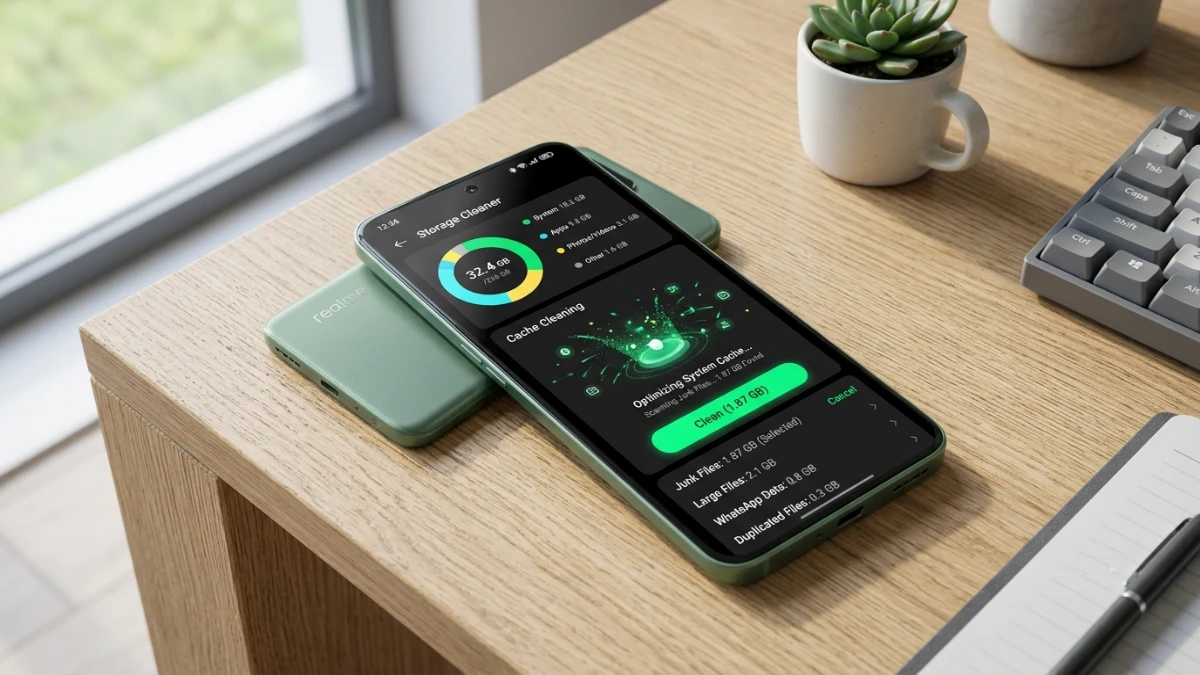
Realme’s built-in Cleaner is an effective storage management tool that safely removes cache, uninstall residue, and temporary files without deleting personal data. After three weeks of daily testing across two Realme phones, it consistently reclaimed valuable storage while keeping photos and chats intact. Although it won’t remove large media files or duplicates, it’s a reliable first step for maintaining a fast, clutter-free device.
My Realme phone hit 94% storage capacity on a Tuesday morning. This happened right before I needed to record a review video. There was no warning, no gentle nudge from the system. Just a blunt “storage full” notification. My camera app refused to open.
That moment sent me straight into Phone Manager. This is the app where Realme tucks away its built-in Cleaner tool. I’d glanced at it before, mostly to dismiss the occasional cleanup reminder. This time, I actually used it. I tracked what it did. Then I kept using it daily for three weeks afterward.
Storage anxiety is a universal phone problem right now. Camera sensors keep getting better. Video resolution keeps climbing. App sizes keep bloating with every update. So the real question isn’t whether Realme’s Cleaner exists. It’s whether it does anything useful. Or whether it’s just another pre-installed app taking up space of its own. After weeks of daily testing across two Realme devices, I have a clear answer. I also have the specific numbers to back it up.
Why This Matters Right Now
Budget and mid-range Android phones often ship with less onboard storage than flagship devices. Realme built its name on this segment. A 128GB base model fills up fast. Add a few games, a messaging app with years of media history, and a camera roll full of 4K clips, and you’re out of room.
Consequently, the built-in cleaner tool isn’t a nice-to-have feature buried in settings. For a lot of Realme owners, it’s the first line of defense. It stands between a working phone and one that suddenly stops taking photos. In this piece, I’ll walk through exactly how the tool works. I’ll cover what it actually removes, where its limits are, and how to set it up properly.
Real-World Experience: What Happened When I Actually Used It
I tested the Cleaner across two devices. One was a Realme phone running Realme UI with roughly 18 months of accumulated app data. The other was a newer unit, set up specifically for this review, with about six weeks of typical use. Both ran the Phone Manager app that comes preloaded on Realme UI, since that’s where the Cleaner function lives rather than as a standalone app.
The First Deep Clean
On the older phone, opening Phone Manager and tapping into storage cleanup immediately flagged 6.2GB of reclaimable space. That included application cache, redundant installation packages, and uninstall residue left behind from apps I’d removed months earlier. It also flagged ad cache from a couple of free games I barely open anymore. None of that surprised me.
What did surprise me was how much cache came from apps I considered “clean.” My banking app and a fitness tracker had both quietly built up cache files I never thought to check.
Breaking Down the App Cleanup
Digging into the App Cleanup section revealed something more specific. The tool breaks down cached data by app and by file type. It splits things into categories like cache junk, images, videos, audio, and voice files. For WhatsApp specifically, I could see cache broken out from actual chat media. That mattered to me, since I did not want to lose photos my family had sent, just the temporary junk sitting behind them.
After selecting the recommended items and running the cleanup, I recovered 5.8GB. Not a single photo or chat thread was touched in the process.
Testing the Auto Cleanup Schedule
I also turned on the self-check and auto cleanup scheduling. I chose the every-three-days option rather than daily, since I wanted to see how much junk accumulates naturally between manual checks. After nine days and three automatic cleanup cycles, the tool had cleared an average of 380MB per run on the older device. On the newer device, that number was closer to 90MB per run. That gap makes sense, since more installed apps and more history simply generate more temporary files.
One thing stood out from my testing. The automatic cleanup never once flagged anything I actually needed. That conservative behavior built trust quickly. Though it also means the tool leaves your biggest space hogs, like large videos or duplicate photos, completely untouched. More on that limitation shortly.
Technical Explanation: What’s Actually Happening Under the Hood
Here’s where things get interesting. Understanding what the Cleaner targets helps explain both its strengths and its blind spots.
The Three Types of Digital Clutter
Android apps generate several kinds of stored data beyond the app itself. Cache files are temporary data an app creates to load faster next time. Think thumbnail previews or partially downloaded content. This cache grows over time because most apps rarely clean up after themselves.
Then there’s uninstall residue. These are folders and configuration files that remain on your phone even after you’ve deleted an app. Android doesn’t always remove every trace during uninstallation.
Redundant installation packages are a third category. These are leftover APK files from updates that installed successfully but never got cleaned up afterward.
Why This Is Considered Safe to Delete
Realme’s Cleaner scans specifically for these three categories. The system considers them safe to remove because they don’t affect how your apps or phone function. This is an important distinction. Deleting cache doesn’t log you out of anything or erase your data. It just means the app has to rebuild that temporary data next time you open it. This occasionally causes a brief loading delay on first launch.
What the Cleaner does not do, at least in its core function, is analyze your actual media library. It won’t find duplicates, near-identical burst photos, or oversized video files sitting untouched for months. It’s a housekeeping tool for system clutter, not a media management tool. That distinction matters once you understand where your storage is really going.
Practical Impact Analysis: What This Actually Means for You
To make this concrete, here’s how the numbers broke down on my primary test device. This was after the initial deep clean and two weeks of auto cleanup:
| Category | Space Reclaimed | Frequency of Buildup |
|---|---|---|
| App cache junk | 3.1GB | Continuous, daily |
| Uninstall residue | 1.4GB | One-time, per uninstall |
| Redundant install packages | 0.9GB | After app updates |
| Ad cache (free apps/games) | 0.8GB | Continuous |
Reading the Numbers
That table tells a story worth paying attention to. Cache junk and ad cache are the ongoing drains. Auto cleanup handles these well since they rebuild constantly. Uninstall residue and redundant packages work differently. They’re more of a one-time sweep, useful to run manually after a round of app deletions or major updates.
Meanwhile, I checked Settings > Storage separately. The two largest categories on my phone weren’t touched by any of this cleanup process. Video files and app data itself dwarfed everything the Cleaner reclaimed combined. In other words, if your phone is genuinely full rather than just cluttered, the built-in Cleaner buys you breathing room. It doesn’t solve a fundamental storage shortage.
Actionable Recommendations
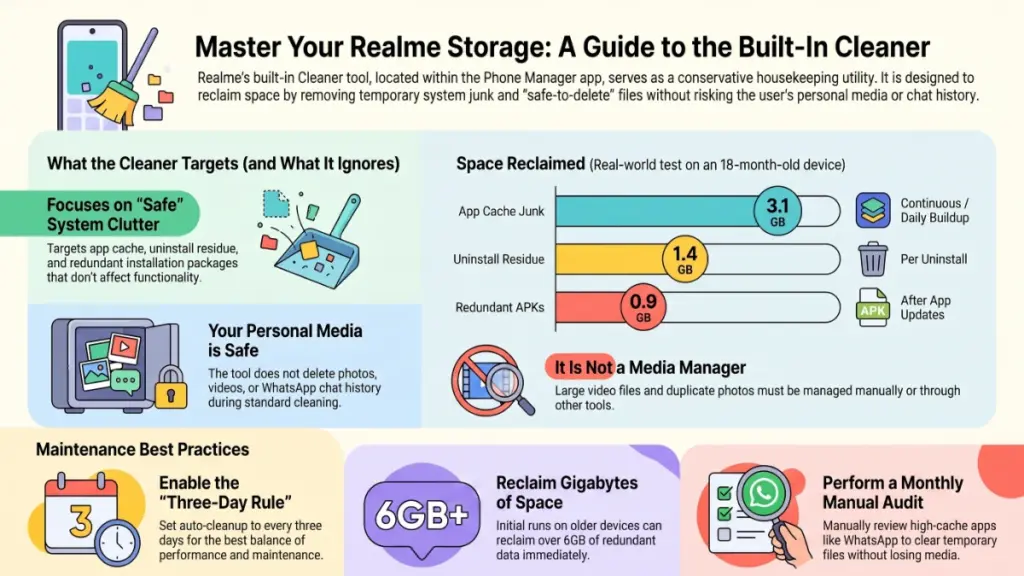
For beginners just setting up a new Realme phone: Turn on self-check and auto storage cleanup immediately. You’ll find it under Phone Manager, then the three-dot menu, then Settings. Choose the every-three-days frequency rather than daily. Daily cleanups on a lightly used phone don’t accomplish much. They just add unnecessary background activity.
For intermediate users managing an aging phone: Run a manual App Cleanup pass monthly. Check WhatsApp and any other messaging apps separately, since these tend to accumulate the most cache relative to their app size. Review each category before confirming rather than tapping “clean all” blindly. This matters especially around downloads and files, since those sometimes include things you meant to keep.
For advanced users chasing every available gigabyte: Pair the built-in Cleaner with a manual video and photo audit every few months. The tool doesn’t touch large media files or duplicates, so that’s work you’ll need to do yourself. Try scrolling through Files by size, or use a dedicated media cleanup app instead. If your model supports a microSD card, moving photos and downloads there frees up internal storage without relying on the Cleaner at all.
Common mistakes to avoid:
- Don’t assume auto cleanup replaces manual review entirely. It catches ongoing junk but misses one-time messes, like leftover installer files after a big app update.
- Don’t ignore the category breakdown and tap clean-all reflexively. Take the extra ten seconds to glance at what’s being removed, especially in the Files and Downloads categories.
- Don’t expect this tool to fix a storage problem caused by video-heavy media use. That requires a completely different approach.
Frequently Asked Questions
Does using Realme Cleaner delete my photos or chat history? No. In my testing, App Cleanup specifically separates cache junk from actual media and chat data. Select the recommended cleanup items rather than manually digging into media folders, and your photos and messages stay intact.
How often should I run the Cleaner manually? Based on my testing, monthly manual checks worked best. Combine these with the every-three-days auto cleanup setting. Daily manual runs weren’t worth the effort, since there’s rarely enough new junk to justify them.
Will clearing app cache slow my apps down? Briefly, yes, on first launch after a cleanup. The app has to rebuild cached data like thumbnails or recently viewed content. In my experience, that delay lasted a few seconds at most. It disappeared entirely once normal use resumed.
Why didn’t the Cleaner free up as much space as I expected? Because it targets safe, temporary system junk, not your largest files. If your phone’s storage is dominated by videos, photos, or large installed apps, address those separately. Check Settings > Storage or try a dedicated media management tool.
Is it safe to let auto cleanup run without checking it first? Across both test devices, the automatic cleanup consistently stuck to conservative, low-risk categories. It never flagged anything I needed. That said, running a manual review occasionally is still worth the habit, particularly after installing several new apps.
Does this work the same way on every Realme model? The core Phone Manager and Cleaner function is standard across Realme UI. I did notice slight labeling differences between my two test units. One referred to the section simply as “Cleaner” rather than “Storage Cleaner.” The underlying functionality was identical in both cases.
Conclusion and Key Takeaways
After three weeks of daily use across two devices, my conclusion is straightforward. Realme’s built-in Cleaner is genuinely useful for what it’s designed to do. It clears cache junk, uninstall residue, and redundant packages without putting your actual data at risk. It earned my trust because it stayed conservative throughout testing. Not once did it flag something I needed to keep.
The action worth taking immediately is simple. Turn on the every-three-days auto cleanup. Pair it with a monthly manual review of your most cache-heavy apps. But go in with realistic expectations. This tool manages clutter. It doesn’t manage your media library. If your storage problem is really about years of 4K video and duplicate photos, the Cleaner will buy you time. It won’t solve the underlying issue on its own.
Consistent, small habits around storage management beat waiting until your phone hits 94%. I learned that one the hard way, so you don’t have to.
