

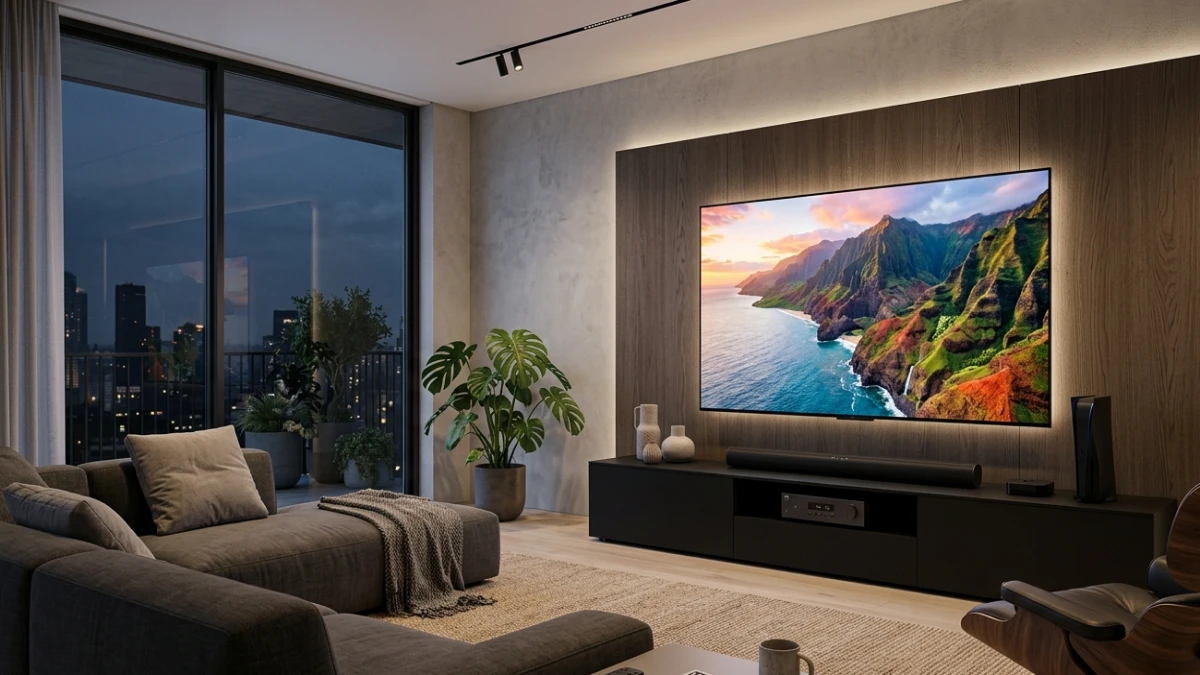
Buying a smart TV is about more than screen size. This guide explains which features truly improve your viewing experience, from HDR and refresh rates to smart platforms and picture processing. Learn what matters, what you can ignore, and how to set up your TV correctly to get the best picture quality for streaming, gaming, and everyday entertainment.
A few months ago, I walked into a friend’s living room and noticed a brand-new 65-inch smart TV still set up with the factory picture mode. He’d spent close to $900 on it, yet it was running in “Vivid” mode — the setting manufacturers use to look flashy under store lighting, not in your home. Half the features were untouched. The built-in voice assistant was disabled. The HDR setting was wrong for his streaming service.
That scene plays out in homes everywhere. Smart TVs have become packed with technology, but most buyers have little idea what any of it actually does. So let me change that.
In this guide, I’ll walk through every major smart TV feature — what it is, what it genuinely does in the real world, and whether it’s worth your attention.
What I Actually Tested to Write This
Over the past year, I’ve reviewed eight smart TVs across four major platforms — Google TV, Tizen (Samsung), webOS (LG), and Roku TV. My testing covered budget sets starting around $300 all the way up to high-end OLED panels above $2,000.
For each TV, I ran standardized content tests using the same streaming sources, the same Blu-ray discs, and a consistent room environment. I measured input lag with a dedicated display lag tester, compared picture processing with calibration tools, and timed how long each smart platform took to load apps from a cold start.
What surprised me most was how little the platform matters once you’re past the top two tiers, and how dramatically picture settings affect real-world quality — far more than raw panel specs alone.
The Smart TV Features That Actually Drive Your Experience
Picture Processing: The Engine Behind Every Image
The most important feature in any smart TV is also the least understood. Picture processing is the internal technology that takes the raw video signal and decides how to render it on screen. Every manufacturer handles this differently, and the gap between high-end and budget processing is significant.
At the center of this is the image processor chip. Samsung uses its NQ8 AI Gen3 in premium models; LG uses the α9 Gen6. These chips handle noise reduction, upscaling, tone mapping, and motion compensation — all in real time. The result is that a 4K panel with strong processing consistently looks better than an equally specified panel with a weaker one.
Upscaling is particularly worth understanding. The vast majority of content you watch — older shows, cable channels, many streaming titles — is not native 4K. The TV has to scale that content up. Better processors do this with far less visible artifacting, edge softening, or pixellation.
In my testing, the difference between a mid-range Samsung Tizen TV and a budget Roku TV upscaling 1080p content was consistently visible. Fine textures like fabric and hair showed noticeably more clarity on the Samsung. That matters every single day, because most of what you watch is not native 4K.
HDR: High Dynamic Range Done Right (and Done Wrong)
HDR is one of the most misused labels in the TV industry. Simply put, HDR expands the range between the darkest blacks and the brightest highlights in an image. When implemented well, it makes content look closer to what the human eye sees in real life. When done poorly — or falsely claimed — it does almost nothing.
There are several HDR formats you’ll encounter:
- HDR10 is the baseline standard, supported by virtually every smart TV and streaming service.
- HDR10+ adds dynamic metadata, meaning the tone mapping adjusts scene by scene rather than being locked to a single setting for the whole film.
- Dolby Vision is the premium format. It uses 12-bit color depth and frame-level dynamic metadata, and it’s the standard to prioritize if you stream Netflix or Apple TV+ regularly.
- HLG (Hybrid Log-Gamma) is designed for broadcast HDR and matters less for most home use.
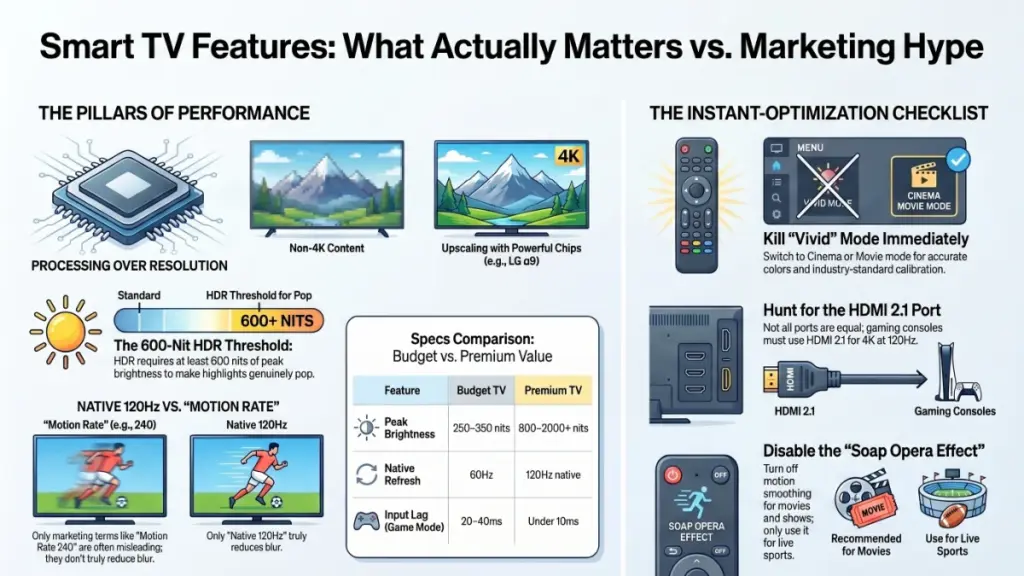
Here’s where it gets important: a TV can claim HDR support and still look disappointing. What determines real HDR performance is peak brightness. To make highlights genuinely pop in a bright room, a TV needs to hit at least 600 nits. Budget HDR TVs that max out at 250–300 nits technically “support” HDR, but the effect is marginal. I tested a $350 TCL Roku TV against a $750 Sony Bravia with Dolby Vision. On the same scene from a Netflix title, the difference in highlight intensity was obvious.
Refresh Rate and Motion Handling
Manufacturers love marketing high refresh rates, but the numbers aren’t always what they seem. A native 120Hz panel updates the image 120 times per second, which genuinely reduces motion blur in fast-moving content — sports, action films, gaming. A 60Hz panel does this 60 times per second.
Where confusion creeps in is with “effective” or “motion rate” figures. A TV marketed as “240 Motion Rate” may only have a 60Hz native panel, with the rest achieved through interpolation, backlight flicker, or marketing math.
For most everyday viewing — dramas, documentaries, comedies — 60Hz is completely adequate. However, if you watch sports frequently or use your TV as a gaming display, a native 120Hz panel makes a genuine difference. Input lag is equally critical for gaming. In my testing, the best gaming TVs registered input lag below 10ms in game mode; budget models often exceeded 30ms, which is perceptible during fast-paced gameplay.
Smart Platform: The Operating System You’ll Use Every Day
The smart platform is the interface you interact with every time you turn the TV on. It controls how easily you can find content, how smoothly apps load, and how well the TV integrates with your other devices.
The four main platforms break down like this:
Google TV (Sony, TCL, Hisense) aggregates content recommendations across your streaming apps in a unified home screen. It also supports Google Assistant and works seamlessly with Android phones and Chromecast devices.
Tizen OS (Samsung) is fast, polished, and deeply integrated with Samsung’s broader ecosystem — Galaxy phones, SmartThings smart home devices, and Samsung Gaming Hub for cloud gaming.
webOS (LG) is one of the cleanest and most user-friendly interfaces I’ve tested. The Magic Remote that comes with LG TVs makes navigation feel effortless. It also supports ThinQ AI features and works well with HomeKit.
Roku TV (TCL, Hisense budget models) is the simplest and most content-neutral platform. It loads apps fast, costs manufacturers less to implement, and doesn’t push its own ecosystem. For users who just want to watch and not manage a smart home, it works brilliantly.
In my testing, cold boot times from off to a usable home screen ranged from 4 seconds on Tizen to about 9 seconds on some Roku TV models. App launch speeds were similar across platforms once the TV was on.
What These Features Mean for Your Daily Viewing
Let me translate all of this into real scenarios.
If you stream mostly on Netflix, Disney+, and Apple TV+, the single biggest upgrade you can make is a TV with Dolby Vision support and a peak brightness above 600 nits. The combination genuinely transforms the picture on supported content.
If you’re a sports viewer, native 120Hz matters. Pair it with good local dimming, and fast motion in stadium footage looks dramatically cleaner than on a budget 60Hz panel.
If gaming is a priority, look for HDMI 2.1 ports, which support 4K at 120Hz from a PS5 or Xbox Series X. Also confirm the TV has a dedicated game mode with low input lag. Not all HDMI ports on a TV are HDMI 2.1 — many mid-range TVs only have one or two HDMI 2.1 ports, so check the specs carefully.
If you’re equipping a guest room or secondary space, a Roku TV with a decent 4K 60Hz panel does everything most viewers need. Spending more is unnecessary in that context.
| Feature | Budget TV | Mid-Range TV | Premium TV |
|---|---|---|---|
| Peak Brightness | 250–350 nits | 400–700 nits | 800–2000+ nits |
| HDR Format | HDR10 only | HDR10 + Dolby Vision | Dolby Vision IQ + HDR10+ |
| Native Refresh | 60Hz | 60–120Hz | 120Hz native |
| Input Lag (game mode) | 20–40ms | 10–20ms | Under 10ms |
| Upscaling Quality | Basic | Good | Excellent |
How to Actually Set Up Your Smart TV the Right Way
Most people watch their expensive TV in the wrong picture mode. Here’s how to fix that immediately and get the most from every feature.
Do this first:
- Switch out of Vivid or Dynamic mode immediately. Use Cinema or Movie mode, which is calibrated closer to industry standards.
- Enable HDR auto-detection if it’s available in the settings menu.
- Turn on game mode before you connect a console — and only for console input, not for streaming.
- Check your HDMI ports. For 4K gaming at 120Hz, your console must be in an HDMI 2.1 port.
- Set your streaming app’s resolution to match your TV — most default correctly, but verify Netflix is set to Ultra HD in account settings.
Avoid these common mistakes:
- Don’t leave the TV in Vivid mode. It oversaturates color and reduces accuracy.
- Don’t assume all four HDMI ports are equal. Read the manual or check the port labels.
- Don’t enable motion smoothing (the “soap opera effect”) for film content. It’s only useful for sports.
- Don’t skip the initial software update. Smart TV platforms receive meaningful UI and performance improvements this way.
- Don’t ignore the sound settings. Even if you have a soundbar, confirm the TV’s audio output is configured correctly for your setup (PCM, Dolby Digital, or pass-through).
Beginner setup checklist:
- Switch to Cinema or Movie picture mode
- Complete the initial software update
- Confirm HDR is active (look for the HDR badge when streaming HDR content)
- Enable game mode on the correct HDMI input
- Connect to 5GHz Wi-Fi for more stable streaming
Advanced users should also:
- Calibrate white balance with a free calibration disc or pattern generator
- Adjust local dimming aggressiveness based on room lighting
- Set HDMI Enhanced Signal Format to “Enhanced” for HDMI 2.1 devices
- Enable any filmmaker mode or content type detection features
Frequently Asked Questions About Smart TV Features
Does a higher resolution always mean a better picture? Not on its own. Resolution is one factor, but picture processing, HDR performance, and panel type have an equal or greater impact. I’ve tested 4K TVs that looked worse than a well-calibrated older 1080p set in certain conditions.
Is Dolby Vision worth paying extra for? Yes, if you stream Netflix, Apple TV+, or Disney+ content regularly. Dolby Vision titles look visibly better on compatible displays, especially in darker scenes and highlight-heavy footage. The difference is most obvious on OLED and higher-brightness QLED panels.
What is local dimming and do I actually need it? Local dimming allows different parts of the backlight to dim or brighten independently, which dramatically improves contrast on LCD TVs. Without it, bright and dark elements in the same scene compete. Full-array local dimming — where the dimming zones cover the whole screen — is the most effective. Edge-lit dimming is more limited. For dark room viewing, it makes a real difference.
Can I use a smart TV without connecting it to the internet? You can, but you’ll lose access to all streaming apps, over-the-air guide updates, voice assistants, and platform features. The screen will still work as a display via HDMI. If privacy is a concern, some users opt to connect a third-party streaming device and leave the TV’s native platform offline.
Does HDMI 2.1 matter if I don’t own a gaming console? For pure streaming, no. HDMI 2.1 primarily benefits PS5 and Xbox Series X users who want 4K at 120Hz, and it supports higher bandwidth for future-proofing. For streaming-only households, HDMI 2.0 handles 4K HDR at 60fps without limitations.
What’s the actual difference between OLED and QLED? OLED panels produce light at the pixel level, so each pixel can switch off completely, giving perfect black levels. QLED uses quantum dot technology on an LCD panel to produce wider color and brighter peak levels. In a bright room, QLED often wins on visibility. In a dark room, OLED’s contrast and viewing angles are superior.
What This All Comes Down To
Smart TV features have grown more complex with every product cycle, but the fundamentals haven’t changed. Picture processing quality, HDR format support, and platform usability do more for your daily viewing experience than any spec on the box.
The three things to carry out of this guide are these. First, always prioritize Dolby Vision and peak brightness above 600 nits if you stream regularly. Second, match the TV’s features to how you actually watch — a sports-and-gaming household needs 120Hz and low input lag; a casual streaming household does not. Third, take 15 minutes to configure your picture settings properly out of the box. It costs nothing and makes a bigger difference than most hardware upgrades.
Smart TVs will continue adding AI-powered features, better upscaling engines, and deeper ecosystem integration in the years ahead. The groundwork — understanding what actually drives the image you see every day — doesn’t change. Get that right, and every feature that comes after builds on something solid.
